I put this image and player here to help you design the vid. The audio covers everything up to My Library How and Why
- Your free trial includes 30 prompts at no charge. If you need more let us know by contacting tech support. We will give you as many as you need.
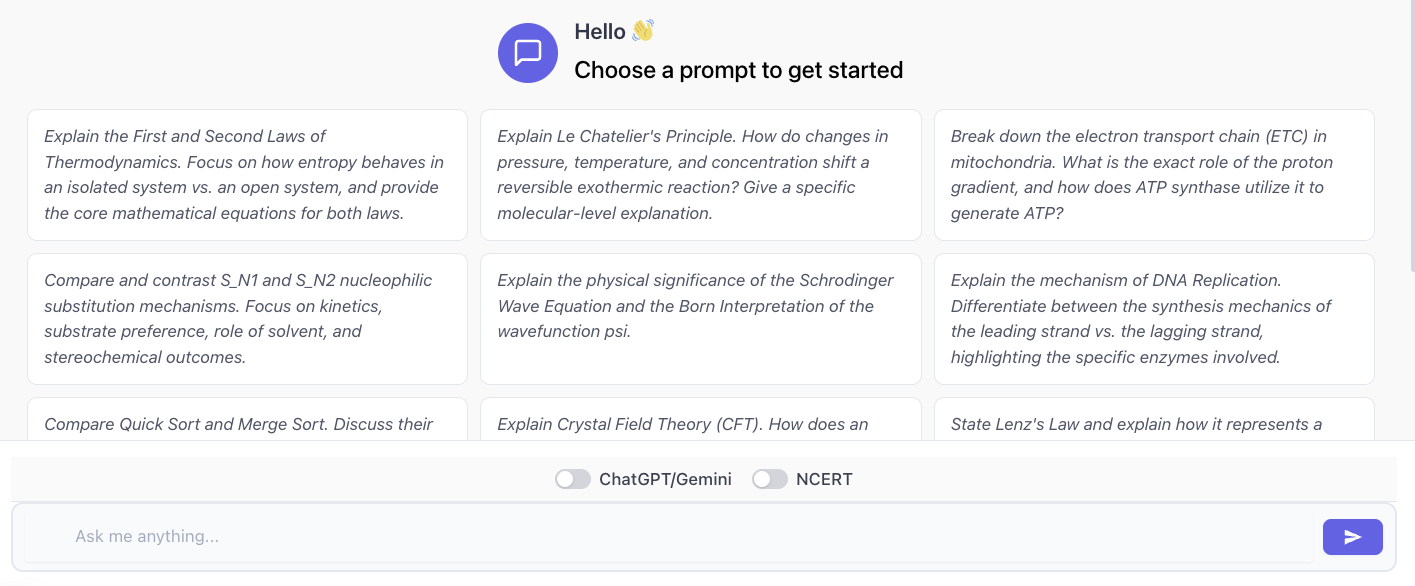
- Your opening screen includes 10 free prompts to help you experience the power of what we can do for you.
- This is an image of the opening screen
- Select any prompt click the go arrow and you’ll get a first hand experience of our single puprose Aspirant focused AI.
We believe that every response our AI gives you should be at least somewhat useful to you. So, if any response we give you is 10 words or less, there’s no charge. Not even the most expensive versions of Gemini or ChatGPT will give you this benefit. We can because we are a single-purpose, Aspirant-focused AI.
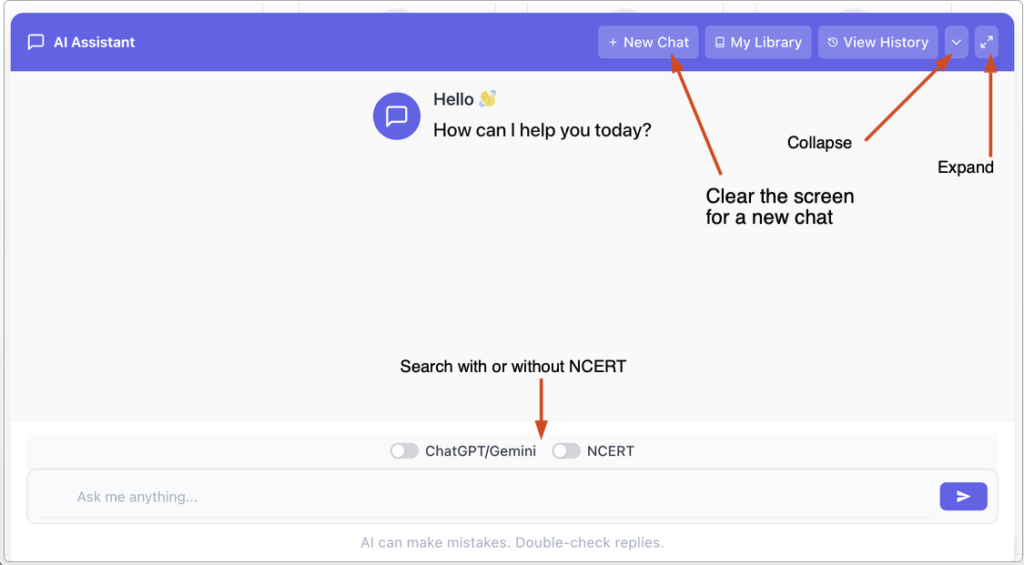
This is the opening screen of your AI. You can click new chat to clear the screen and start a new chat. You can collapse the screen or expand it. You search with NCERT or without.
My Library
• My Library is where you store all the documents you want to. Instead of thousands of documents located in countless folders on your disk, you can upload all of them to My Library.
• We make a digital copy of each document and automatically encrypt it to protect your privacy.
• You keep possession of the original.
• You can store your documents in as many notebooks as you wish.
How to use My Library for better studying
• We limit each upload to 5mb. According to Google overview, a 5mb file can store 300k – 500k words. The overview says that complex text books have approximately 300-500k words.
• We set this limit to help you study. Trying to study an entire text book all at once puts too much pressure on anyone.
• Studying text books in segments enables more efficient studying. We suggest that you limit your uploads to 3 mb at most.
You can use https://www.ilovepdf.com/split_pdf a free resource to split your pdf for more effective study. Or https://www.adobe.com/acrobat/online/split-pdf.html
Now let’s discuss how to use My Library to get the best study results.
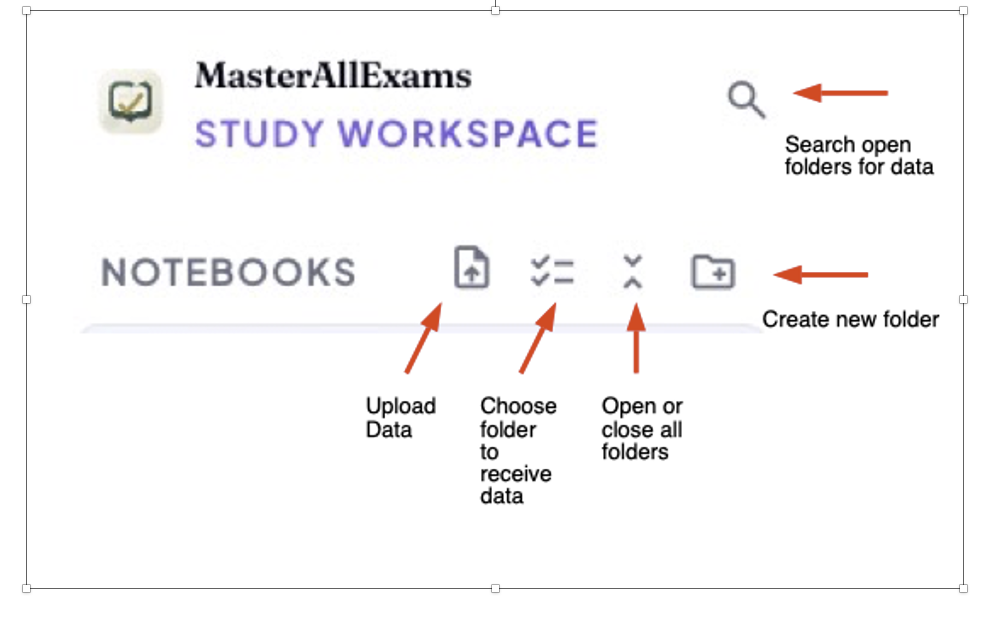
- The magnifying glass searches open folders.
- The page icon with the up arrow is for uploading data
- The checkmarks are to choose folders to receive the uploaded data
- The carets open or close all folders
- The folder with the plus mark creates a new folder