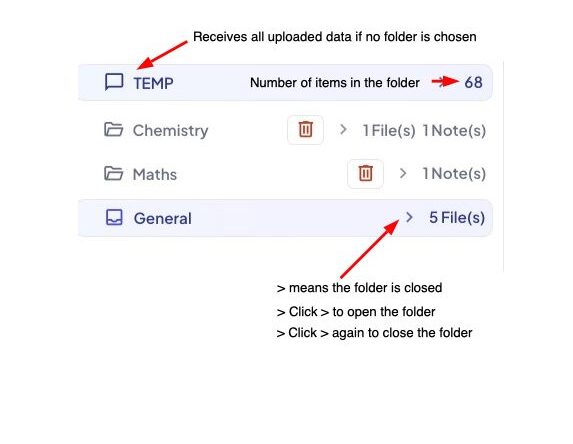
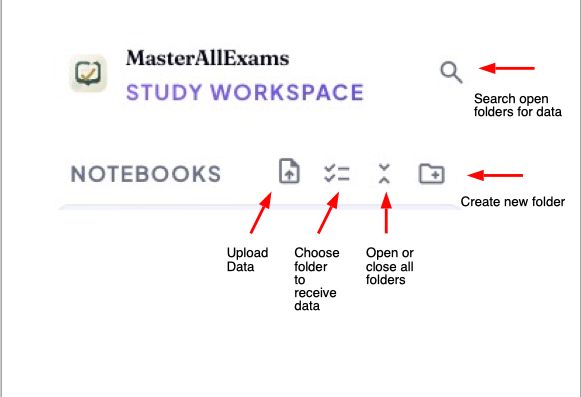
This is the opening screen.

My Library How & Why

  • My Library is where you store all the documents you want to. Instead of thousands of documents located in countless folders on your disk, you can upload all of them to My Library.
  • We make a digital copy of each document and automatically encrypt it to protect your privacy.
  • You keep possession of the original.
  • You can store your documents in as many notebooks as you wish.

How to use it for better studying

  • We limit each upload to 5mb. According to Google overview, a 5mb file can store 300k – 500k words. The overview says that complex text books have approximately 300-500k words.
  • We set this limit to help you study. Trying to study an entire text book all at once puts too much pressure on anyone.
  • Studying text books in segments enables more eKicient studying. We suggest that you limit your uploads to 3 mb at most.
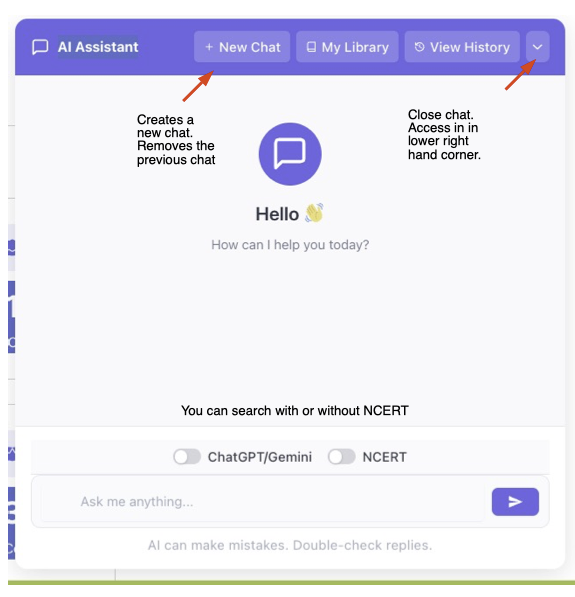
You can use https://www.ilovepdf.com/split_pdf a free resource to split your pdf for more eKective study. Or

https://www.adobe.com/acrobat/online/split-pdf.html

According to the AI overview you can also:

  • Open your PDF in any reader (like Adobe Acrobat, web browser, or Preview).
  • Press Ctrl + P (Windows) or Cmd + P (Mac) to open the print menu.
  • Select Print to PDF or Save as PDF as your printer.
  • Specify the exact Pages you want in this section (e.g., pages 1-5).
  • Click Save or Print and choose a destination folder. Repeat this process for the remaining sections.

Now let’s discuss how to use My Library to get the best study results.

My Library

Working With Folders & Notebooks

How to Move Data

Choose a document.

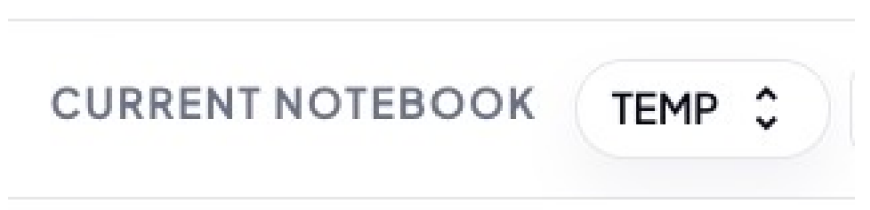
The top row will display the folder.

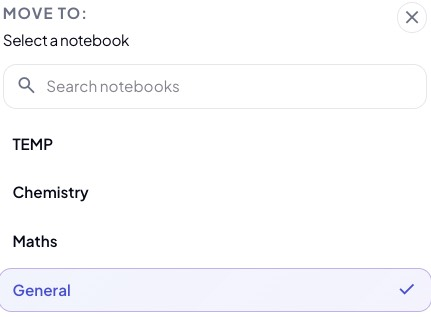
Click the notebook. A dropdown will appear.

Choose the notebook you want.

The Document is automatically moved to the folder you chose.

In this example the document was automatically moved from the General Folder to the Temp folder. Without the hassle of clicking and dragging.

Scroll to Top